How To Reset Your Samsung TV
If your Frame or other Samsung TV is acting up, give these resets a...
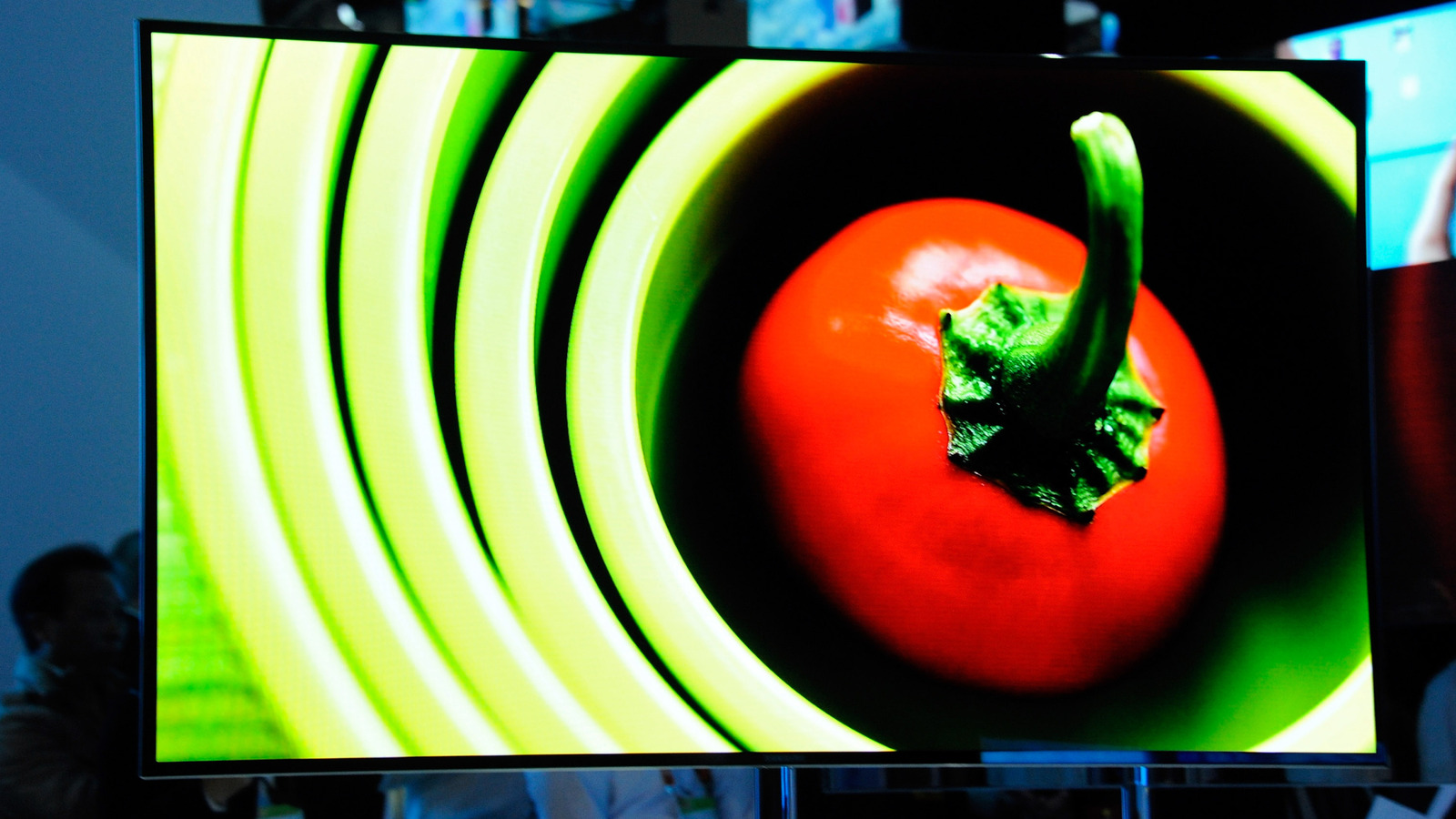
If your Frame or other Samsung TV is acting up, give these resets a try, Ethan Miller/Getty Images Resetting devices is, oddly enough, an essential skill in the modern tech landscape. Aside from the fact that selling or trading devices like smartphones and laptops is incredibly common, it's an effective troubleshooting technique.
Factory resets force a device to revert to its out-of-the-box state, including options, processes and installed apps. It can be a royal pain to get things back the way you like — but it's better than dealing with crashes or broken features. There are few reasons to reset a smart TV, including Samsung models, yet things do sometimes go haywire.
A favorite streaming app might repeatedly freeze no matter how many times you reinstall it, or the OS might develop problems like video glitches. There's no guarantee that a reset will come to the rescue, but it's a good troubleshooting step. There's not much to performing one on a Samsung TV .
Just be sure to try simpler tactics first, some of which we'll go over later. Remember, once you've triggered a factory reset, there's no going back. On top of reconfiguring picture and sound preferences, you'll be redownloading apps and OS updates.
All you need to know about factory resetting your Samsung TV Alex Wong/Getty Images Before initiating a factory reset, be sure you have any PIN codes and passwords written down somewhere, including the logins for streaming apps and your Wi-Fi router. Once the reset is complete, you'll need these to get back to watching anything.
Unless, perhaps, you're content with over-the-air TV, Blu-ray or a connected game console or PC. Even then, you may want to get back online briefly to install updates for Tizen, Samsung's OS. Once you're sure you want to go ahead, follow these steps: 1.
From the home screen, select Settings . 2. Click All Settings .
3. Choose General & Privacy . 4.
At the very bottom of the menu, click Reset . 5. You'll need to enter a PIN, even if you haven't created one.
If you haven't chosen a custom PIN, enter 0000. 6. Select OK .
Your TV should begin the reset process a moment later. Periodically, Samsung updates Tizen in a way that relabels certain buttons and menus. As a rule, though, the process shouldn't vary much from generation to generation.
Just look for similar-sounding labels, and explore a bit if you have to. If you're apprehensive about going nuclear, there are some soft resets you can try first. For minor or one-off glitches, these may be all you need.
Some are specific to particular problems, though, as you'll see. The soft reset options for Samsung TVs ibinajah/Shutterstock To simply reboot your TV, unplug it for 30 seconds or hold the power button on the remote for five seconds. Your TV will briefly turn off, then pop back on with the Samsung logo.
A reboot might not seem very dramatic, but this does clear out your TV's RAM and system cache. It also restarts background processes, which can sometimes glitch out. You might, in rare cases, benefit from resetting the Smart Hub without performing a full factory reset.
This reverts the Hub's options to defaults and wipes associated apps and account info. You'll have to redownload apps and log in again. To reset the Hub, follow these steps: 1.
Go to Settings > All Settings . 2. Click Support .
3. Choose Device Care , then Self Diagnosis . 4.
Click Reset Smart Hub . 5. Enter your PIN.
If you didn't choose one, enter 0000. Lastly, you might try resetting network settings if you're specifically dealing with connection issues. Chances are the problem lies with your router or service provider, so troubleshoot those first.
It can't hurt to reconnect with a fresh start, however, as long as you have your router's login info handy. Here's the process: 1. Head to Settings > All Settings .
2. Click Connections , then Network . 3.
Choose Reset Network . To confirm, click Reset . 4.
Return to Network Settings to enter your router's SSID and password. You might understand now why you'd want to jump straight to a factory reset if a reboot doesn't work. If an issue is hard to diagnose, a total reset can save you the hassle of resetting components one by one.
There's also nothing to be lost unless you simply can't remember a critical login.
Article text via FreeNewsAPI. Rights remain with Engadget.
Read on publisher site → Opens Engadget in a new tab